
Screenshot Beautification for Social Media Agencies: One Image in the Client Chat Says More Than You Think
By Zhou Ying — covering social media agency delivery
Wednesday, 10 p.m. Ah Zhe had just exported a follower-growth screenshot from the backend and dropped it straight into the client group chat, with a quick caption: "Here's this week's numbers, growth looks solid." Three minutes later, the client replied: "Could this look a little more presentable? How is this any different from a random screenshot someone posts to their Moments feed?" Ah Zhe stared at the image — a system status bar along the edge, a flat gray browser background, numbers crammed into the top-left corner — and didn't have a quick comeback. The numbers really had gone up, but the screenshot didn't look like something a client paying for a service should be handed.
It's a scene most people running social media agency accounts have lived through at some point. The data isn't the problem — the container the data comes wrapped in is just too casual.
Wrapping client-facing screenshots — weekly data reports, chat interactions, results summaries — in a gradient background, some padding, rounded corners, and a soft shadow noticeably improves the first impression, and the whole thing usually takes about ten seconds per image.
- Sending raw screenshots straight to clients often reads as a careless deliverable; adding a consistent background treatment usually improves both the look and the trust it inspires.
- The process is just five steps — upload, pick a background, adjust padding, adjust corner radius and shadow, export — no design software required.
- This tool wraps a background around an existing screenshot. That's a different job from turning a line of copy into an image with the Quote to Image tool — don't mix the two up.
- Weekly data reports, client interaction screenshots, and platform-backend results summaries all fit this use case, especially for agencies juggling multiple clients and platforms at once.
The screenshot beautifier used in this piece comes from SocialEcho. SocialEcho is an all-in-one social media AI workspace built for brands and agencies going global, connecting directly to 11 platforms including Instagram, LinkedIn, and X. It brings publishing, weekly reporting, and engagement management for multiple client accounts into a single dashboard — a good fit for agencies delivering work project by project.
Why do raw screenshots come across as unprofessional?
Short answer: most of the time the problem isn't the data itself — it's the signal that the "container" around the data sends. Messy edges, a default gray system background, numbers crammed into a corner: screenshots like this make clients subconsciously feel like the work was done carelessly.
In this business, clients rarely log into the backend themselves to verify every number. What they actually perceive, most of the time, is the first impression the deliverable makes: is the weekly report screenshot clean, do the case-study images share a consistent look, does the invoice look like it was screenshotted in a hurry. These visual details don't determine the quality of the service directly, but clients use them, often unconsciously, to score how "professional" the work feels.
A screenshot with messy edges and a default white or browser-toolbar background tends to send an unspoken message: "this was thrown together." A screenshot with a consistent background color, comfortable padding, and softly rounded corners looks, even with identical content, like "a team is delivering this seriously." Clients may not be able to name the difference, but they feel it — and that feeling often sticks longer than a few extra points of engagement rate.
The catch is that most teams churn out a lot of screenshots every day — weekly reports, publishing logs, client interaction screenshots, platform results summaries — each pulled from a different platform, at a different resolution, in a different color scheme, with no shared style. Processing them by hand one at a time just isn't worth the time it costs.
What does adding a background actually improve?
Short answer: layering on a background, adding padding, softening the corners, and dropping in a light shadow turns a screenshot from "raw data pasted into a document" into "an image made for the client." The whole process usually takes a few seconds to about ten seconds.
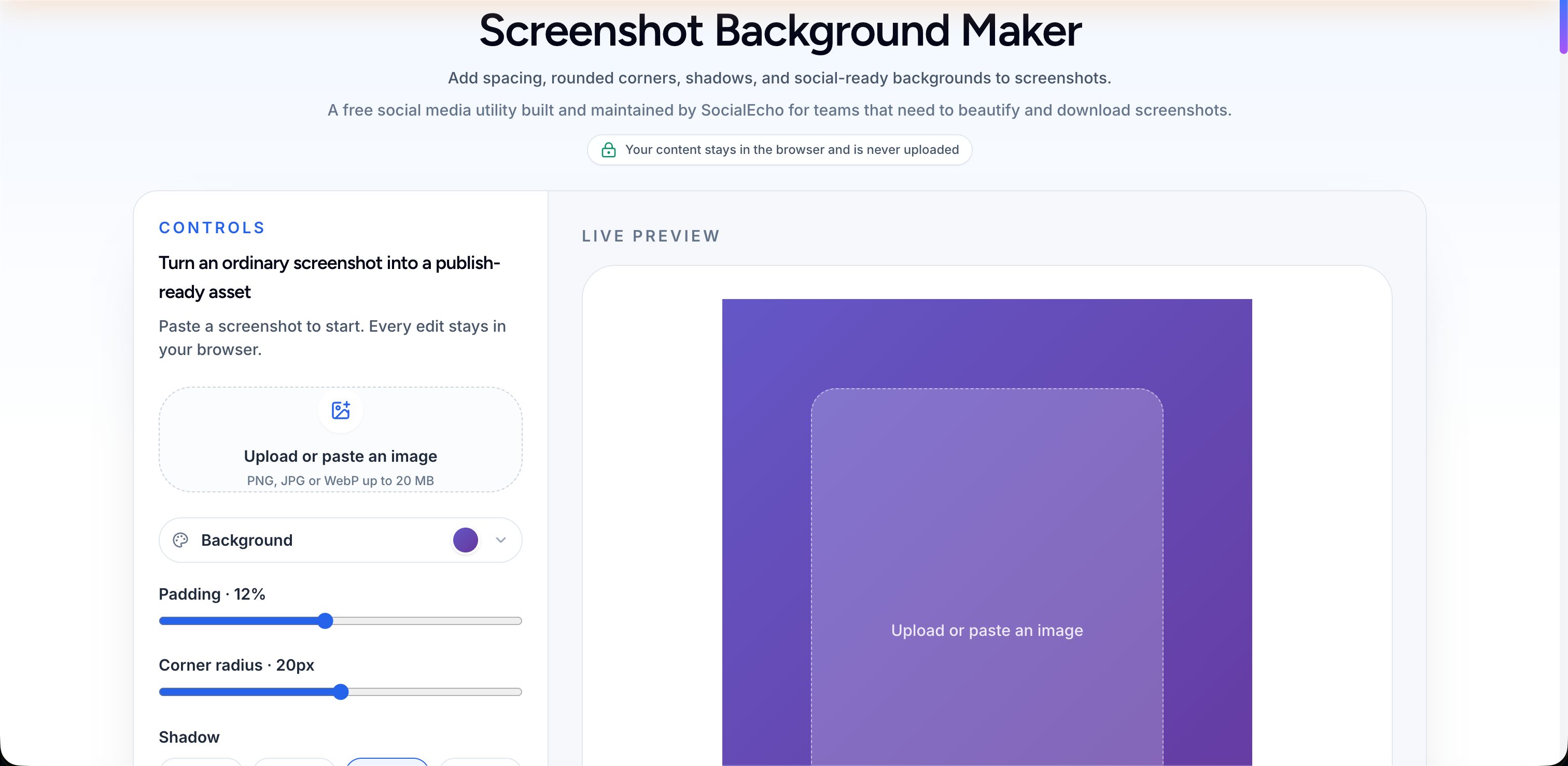
SocialEcho's Screenshot Background Beautifier is a free online tool built for agency teams: upload an existing screenshot (a data dashboard, a chat log, a results summary), pick a gradient background, adjust the padding, set the corner radius and shadow intensity, and export in a few steps — ready to drop straight into a client chat, a report document, or a case-study collection.
Worth clarifying: this tool wraps a background around an image that already exists — a data chart, a chat screenshot, a results screenshot. If what you're actually trying to do is turn a sentence or a paragraph of copy into an image (a client testimonial, a quote card), that's a different tool's job — check out the Quote to Image tool instead. The two serve different purposes.
The table below compares raw, unprocessed screenshots against the background-beautified version:
| Screenshot Treatment | Perceived Professionalism | Client Trust | Delivery Efficiency |
|---|---|---|---|
| Sent raw (no processing) | Feels casual, often read as "just a quick screenshot" | Clients have to fill in the gaps about service quality themselves, which often works against you | Fastest for a single image, but a case-study collection ends up looking patched together |
| Background-beautified (gradient + padding + rounded corners + shadow) | More consistent look, reads as "a team delivering this" | Visual consistency tends to build trust | A few extra seconds to about ten seconds per image; once you batch it, the consistent style actually saves time in the long run |
Clients may not be able to put their finger on what's different between one screenshot and another, but the visual first impression usually registers before the content does — which is exactly why a small free tool like this is worth an agency's attention.
How do you turn a screenshot presentable in about ten seconds?
Short answer: the whole workflow is five steps — upload, pick a background, adjust the padding, adjust the corner radius and shadow, export — and a single image usually takes well under ten seconds, no design background required.
- Upload the original screenshot (a dashboard image, chat log, or results screenshot all work)
- Pick a gradient background color — warmer tones tend to feel friendlier for anything related to client communication
- Adjust the padding to give the screenshot some breathing room on all sides
- Set the corner radius and shadow intensity to add a bit of depth
- Export, then send it directly or drop it into a report document
Here's what each of the four parameters actually does:
| Parameter | What It Does |
|---|---|
| Gradient background | Sets a consistent visual tone; warm tones tend to fit client-facing communication better |
| Padding | Keeps the screenshot from touching the edge, adding breathing room |
| Corner radius | Softens hard edges so the image reads more like something "designed" rather than raw |
| Shadow intensity | Adds a light sense of depth so the image no longer looks flat |
Which delivery scenarios most need beautified screenshots?
Short answer: weekly data report screenshots, client interaction/chat screenshots, and platform backend results summaries are the three types of assets agencies most often need to beautify — especially teams managing multiple platforms at once, since backend interfaces vary wildly in color scheme from platform to platform.
Weekly report screenshots are the detail most often overlooked
Among everything an agency delivers to clients each week, the weekly data report is one of the most frequent items — and one of the easiest to overlook visually. Teams typically export growth curves, engagement data, and audience charts from the analytics dashboard and screenshot them straight to the client. The charts themselves are fine, but the edges of the screenshot usually carry along the dashboard's border, menu bar, or even an unrelated browser tab, and that clutter pulls the client's attention away from what actually matters.
Here's a concrete example: one agency team worked with a home-goods brand expanding overseas, running accounts on Instagram and Facebook. For a while, the weekly growth screenshots went out raw, and the client's response in the group chat was mostly silence. The team then switched to wrapping every weekly growth screenshot in a consistent warm gradient background with padding and a light shadow before sending it. Once the format became consistent, the client started actively asking follow-up questions about specific numbers — the chart content hadn't changed, but the client had started actually reading it. That's not magic; the first impression an image makes genuinely affects whether someone bothers to look closer.
It's not just weekly reports — chat logs and results summaries too
Beyond data charts, agencies regularly handle client interaction screenshots and platform backend results screenshots. Think of a typical comment thread exported from the engagement dashboard, or a results summary for a post pulled from the publishing log — these screenshots often end up in case-study collections, proposal documents, or "good news" messages in the client chat.
If every one of these goes out as a raw screenshot, a case-study collection ends up looking patched together over time — one image with a browser border, another with a system status bar, styles that don't match at all. Once everything shares the same background treatment, images pulled from different platforms and different months still sit together cleanly. This kind of consistency matters even more for teams managing account matrices across multiple platforms at once — say, running both X and LinkedIn accounts.
One more thing worth mentioning: many teams check the crop ratio before beautifying a screenshot, especially when the image is going into a case-study page or a proposal PDF — the wrong ratio can squeeze the layout out of shape. Run it through the Image Crop Checker first to confirm the dimensions, then move on to the background step — get the order right and the finished image comes out cleaner. If the screenshot resolution needs to be standardized, larger or smaller, the Image Resizer can handle that first.
Why should agency teams build this into their workflow?
Short answer: wrapping a background around a screenshot looks like a small, almost trivial step, but for agencies serving multiple clients on a tight delivery schedule, it shapes how clients perceive service quality every single week and month — which is exactly why it's worth turning into a standing habit rather than something done on a whim.
Many teams serve several clients at once on an already-tight schedule. If beautifying a screenshot means opening design software and manually adjusting the background and padding before every delivery, in practice most teams will quietly stop doing it. That's the whole point of a free tool like this — it doesn't solve "can we make a nice-looking image," it solves "can we keep doing this small thing consistently without adding to our workload."
SocialEcho is a social media management tool built for agency teams, connecting through official OAuth to 11 platforms — Facebook, Instagram, X, LinkedIn, Telegram, YouTube, TikTok, TikTok Shop, Pinterest, Reddit, and Threads. Publishing, AI content creation, engagement management, social listening, and analytics all run inside a single system. If your team's business is built on managing a matrix of client accounts, take a look at the agency solution to see whether the whole workflow can simplify recurring deliverables like weekly reports and case-study images.
Back to Ah Zhe on that Wednesday night. He re-exported the growth screenshot, wrapped it in a warm gradient background, added some padding, and adjusted the corner radius and shadow — the whole thing took him under a minute. The next morning, the client replied in the group chat with a smiley emoji: "This looks a lot better." Not a single number had changed — only those ten-odd seconds of processing.
Screenshot beautification solves a presentation problem — it makes deliverables look more polished and easier to take seriously — but it doesn't substitute for the accuracy of the data or the actual results of the service. If an account's growth numbers aren't good, no amount of warm background is going to satisfy the client.
This tool fits best as part of a delivery habit, not as a way to dress up appearances. It's free to use, doesn't require any account authorization, and won't prompt you to add a personal account or join any private group — process the image and download it directly.
Frequently asked questions
Is the screenshot background beautifier free?
Yes. SocialEcho's Screenshot Background Beautifier is free to use, with no account registration or platform authorization required. Upload a screenshot, adjust the settings, and export — the finished image downloads directly.
Do I need design software or design skills to beautify a screenshot?
No. The whole process is five steps — upload, pick a background, adjust padding, adjust corner radius and shadow, export — all done by dragging or clicking directly in the interface. There's no layer work or cutout editing involved.
What kinds of screenshots work best with this tool?
Data dashboard screenshots, client interaction/chat screenshots, and platform backend results summaries are the three most common use cases — especially screenshots headed for a client chat, a report document, or a case-study collection, where a consistent treatment makes the whole set look more cohesive.
What's the difference between the screenshot background beautifier and the quote-to-image tool?
The screenshot background beautifier works on an image that already exists — wrapping it in a background, padding, rounded corners, and a shadow. The Quote to Image tool starts from scratch, turning a sentence or a piece of copy into an image — a client testimonial or a quote card, for example. The inputs are different, and so are the use cases; they're not interchangeable.
How long does it take to process one screenshot?
A single screenshot usually takes well under ten seconds from upload to export. Processing a batch of weekly report screenshots goes even faster overall, since the same settings — background color, padding, corner radius, shadow — can be reused across the whole set.
Key takeaways
- Raw screenshots sent straight to clients often read as a careless deliverable; a consistent background treatment tends to improve both the first impression and the trust it builds.
- The beautifying workflow is five steps — upload, pick a background, adjust padding, adjust corner radius and shadow, export — and a single image usually takes well under ten seconds.
- Weekly data report screenshots, client interaction screenshots, and platform results summaries are the three asset types agencies should prioritize beautifying.
- Screenshot background beautification wraps a background around an existing screenshot — a different tool from the Quote to Image tool, which turns copy into an image from scratch. Don't confuse the two.
- Beautifying a screenshot solves a presentation problem; it doesn't replace the underlying data or the actual results of the service. It works best as a habit built into delivery, not a one-off polish.
;}.cls-2{fill:%230868f7;}.cls-3{fill:url(%23未命名的渐变_44);}.cls-4{fill:%23333;}%3c/style%3e%3clinearGradient%20id='未命名的渐变_8'%20x1='33.73'%20y1='100.61'%20x2='-0.03'%20y2='-1.06'%20gradientUnits='userSpaceOnUse'%3e%3cstop%20offset='0'%20stop-color='%237ae9fb'/%3e%3cstop%20offset='0.67'%20stop-color='%232b90f8'/%3e%3cstop%20offset='1'%20stop-color='%230868f7'/%3e%3c/linearGradient%3e%3clinearGradient%20id='未命名的渐变_44'%20x1='27.86'%20y1='18.67'%20x2='68.36'%20y2='22.22'%20gradientUnits='userSpaceOnUse'%3e%3cstop%20offset='0'%20stop-color='%235ac7f2'/%3e%3cstop%20offset='1'%20stop-color='%230868f7'/%3e%3c/linearGradient%3e%3c/defs%3e%3cpath%20class='cls-1'%20d='M29,28.74V81.91l-9.51-3.68v0L8.52,74A7.17,7.17,0,0,1,4,67.32V24.54A3.76,3.76,0,0,1,9.08,21Z'/%3e%3cpath%20class='cls-2'%20d='M68.09,78.07a13.15,13.15,0,0,1-17.9,12.06L29,81.91h0V28.74L50.19,37A13.17,13.17,0,0,0,68.08,25.3h0Z'/%3e%3cpath%20class='cls-3'%20d='M68.08,25.3a13.19,13.19,0,0,1-6.73,10.87A13.09,13.09,0,0,1,50.19,37L29,28.74V6A3.76,3.76,0,0,1,34.1,2.52l25.59,9.91A13.22,13.22,0,0,1,68.08,25.3Z'/%3e%3cpath%20class='cls-4'%20d='M129.06,81.76a4.33,4.33,0,0,1-3.19-1.31,4.4,4.4,0,0,1-1.31-3.24V56.86H97.65V77.21a4.36,4.36,0,0,1-1.35,3.2A4.68,4.68,0,0,1,93,81.76a4.32,4.32,0,0,1-3.19-1.31,4.37,4.37,0,0,1-1.32-3.24V27.27A4.58,4.58,0,0,1,89.83,24a4.59,4.59,0,0,1,7.82,3.27V48.15h26.91V27.27A4.58,4.58,0,0,1,125.91,24a4.59,4.59,0,0,1,7.82,3.27V77.21a4.37,4.37,0,0,1-1.36,3.2A4.65,4.65,0,0,1,129.06,81.76Z'/%3e%3cpath%20class='cls-4'%20d='M163.77,81.66c-6.57,0-11.76-1.92-15.44-5.7s-5.54-9.07-5.54-15.74a26.76,26.76,0,0,1,2.09-10.43,17.72,17.72,0,0,1,6.67-8.06,19.15,19.15,0,0,1,10.68-2.95,19,19,0,0,1,10.46,2.8,18.7,18.7,0,0,1,6.55,7.36,22.53,22.53,0,0,1,2.36,10.28A4.51,4.51,0,0,1,177,63.77H152.23a10.8,10.8,0,0,0,3.49,6.65c2,1.68,4.88,2.52,8.66,2.52a22.25,22.25,0,0,0,7.54-1.21c.74-.3,1.55-.67,2.37-1.07a3.75,3.75,0,0,1,1.84-.4,4.09,4.09,0,0,1,3,1.15,4,4,0,0,1,1.12,3,4.38,4.38,0,0,1-2.58,3.82,32.34,32.34,0,0,1-6.36,2.61A28.67,28.67,0,0,1,163.77,81.66ZM172.4,55.9a9.72,9.72,0,0,0-1.63-4.56A9.9,9.9,0,0,0,167,48a10.38,10.38,0,0,0-4.64-1.14,12,12,0,0,0-4.77,1.06,9.54,9.54,0,0,0-4.89,5.66,11.78,11.78,0,0,0-.51,2.3Z'/%3e%3cpath%20class='cls-4'%20d='M193,81.64a4.49,4.49,0,0,1-4.51-4.55V27.28A4.58,4.58,0,0,1,189.84,24a4.48,4.48,0,0,1,3.28-1.36A4.36,4.36,0,0,1,196.35,24a4.46,4.46,0,0,1,1.31,3.31V77.09a4.34,4.34,0,0,1-1.35,3.2A4.67,4.67,0,0,1,193,81.64Z'/%3e%3cpath%20class='cls-4'%20d='M263.79,81.71a5.7,5.7,0,0,1-4.2-1.74,5.76,5.76,0,0,1-1.73-4.19V27.37a4.58,4.58,0,0,1,1.35-3.27A4.59,4.59,0,0,1,267,27.37V72.53h24a4.58,4.58,0,0,1,3.27,7.82A4.66,4.66,0,0,1,291,81.71Z'/%3e%3cpath%20class='cls-4'%20d='M424.48,81.74a4.71,4.71,0,0,1-2.71-.88,5.43,5.43,0,0,1-1-1l-.07-.09-12.41-17-5.41,5v9.44a4.31,4.31,0,0,1-1.36,3.19,4.66,4.66,0,0,1-3.3,1.36A4.29,4.29,0,0,1,395,80.42a4.36,4.36,0,0,1-1.32-3.23V27.37A4.58,4.58,0,0,1,395,24.1a4.52,4.52,0,0,1,6.58.12,4.54,4.54,0,0,1,1.24,3.15V56.31l17.72-16.38.05,0a4.8,4.8,0,0,1,2.94-1.11,4.4,4.4,0,0,1,3.27,1.2,4.57,4.57,0,0,1,1.2,3.27,4.44,4.44,0,0,1-.77,2.33,7.45,7.45,0,0,1-1.43,1.65l-11,9.64,13.34,17.68a5,5,0,0,1,1,2.71,4.12,4.12,0,0,1-1.36,3.24A4.64,4.64,0,0,1,424.48,81.74Z'/%3e%3cpath%20class='cls-4'%20d='M317.93,81.76a21.5,21.5,0,1,1,21.17-21.5A21.37,21.37,0,0,1,317.93,81.76Zm0-34.1a12.61,12.61,0,1,0,12.42,12.6A12.52,12.52,0,0,0,317.93,47.66Z'/%3e%3cpath%20class='cls-4'%20d='M212.18,101.22a4.12,4.12,0,0,1-3.05-1.26,4.17,4.17,0,0,1-1.26-3.1V43.34a4.37,4.37,0,0,1,1.3-3.14,4.26,4.26,0,0,1,3.13-1.3,4.19,4.19,0,0,1,3.1,1.26,4.32,4.32,0,0,1,1.26,3.16,20.77,20.77,0,0,1,13-4.54,21.51,21.51,0,0,1,0,43,20.51,20.51,0,0,1-13-4.57V96.86a4.15,4.15,0,0,1-1.3,3.06A4.5,4.5,0,0,1,212.18,101.22Zm17.43-53.63c-6.23,0-12.93,4.11-12.93,12.72a12.73,12.73,0,0,0,25.46,0A12.71,12.71,0,0,0,229.61,47.59Z'/%3e%3cpath%20class='cls-4'%20d='M365.76,81.76a21.5,21.5,0,1,1,21.18-21.5A21.37,21.37,0,0,1,365.76,81.76Zm0-34.1a12.61,12.61,0,1,0,12.42,12.6A12.52,12.52,0,0,0,365.76,47.66Z'/%3e%3c/svg%3e)